




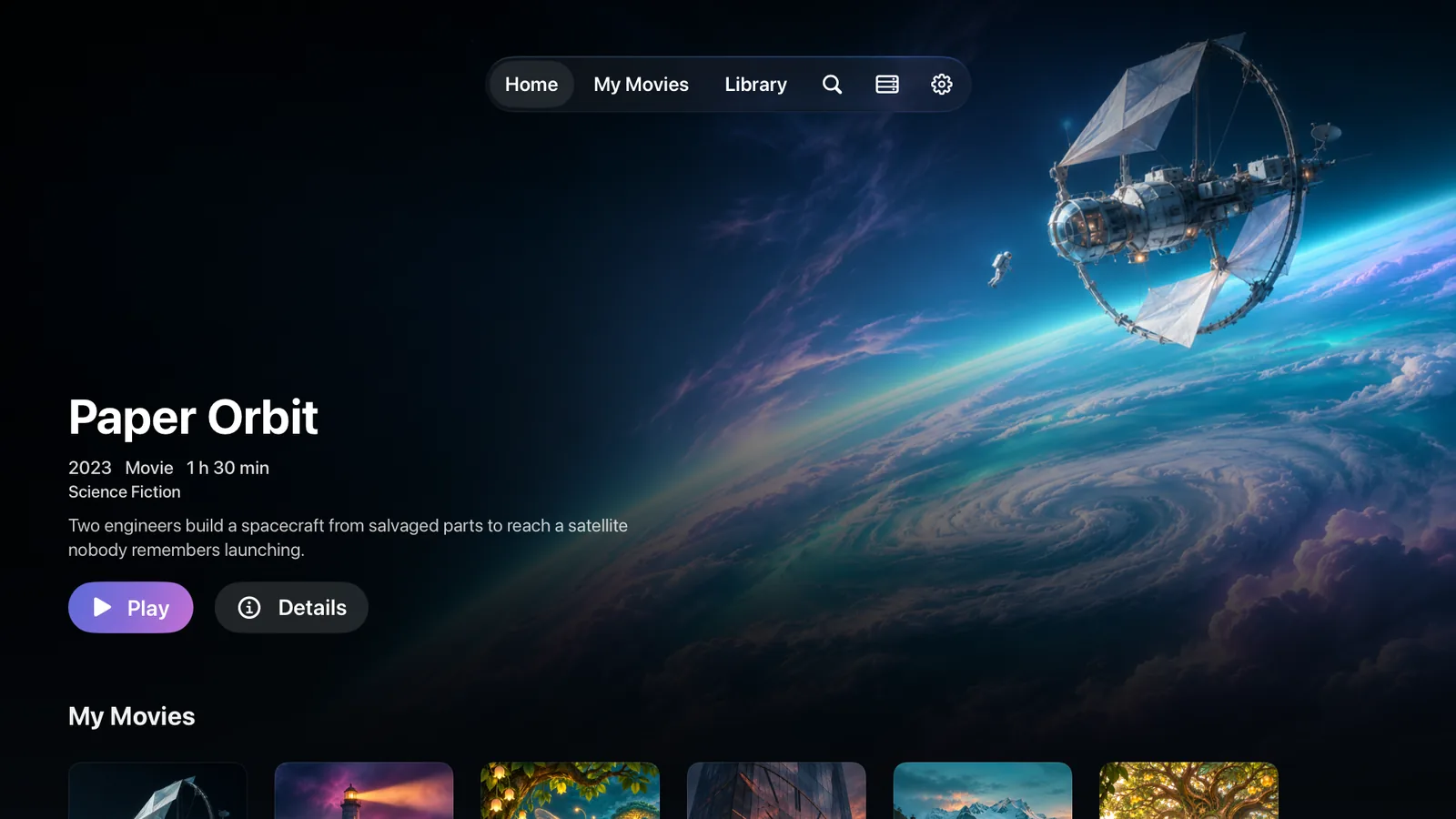
Lumière for Apple TV
Requires tvOS 18 or later
- Open the App Store on your Apple TV.
- Search for Lumière.
- Select Get.
Did you already get Lumière on another device? Look in Purchased in the App Store on your Apple TV.
Downloads
The apps play your library on your Apple devices. Lumière Server is optional. It is a free server for the movies, shows, and music you already have.
Apps
One App Store download covers every device. It is free to start, and Lumière Plus is optional.
Requires tvOS 18 or later
Did you already get Lumière on another device? Look in Purchased in the App Store on your Apple TV.
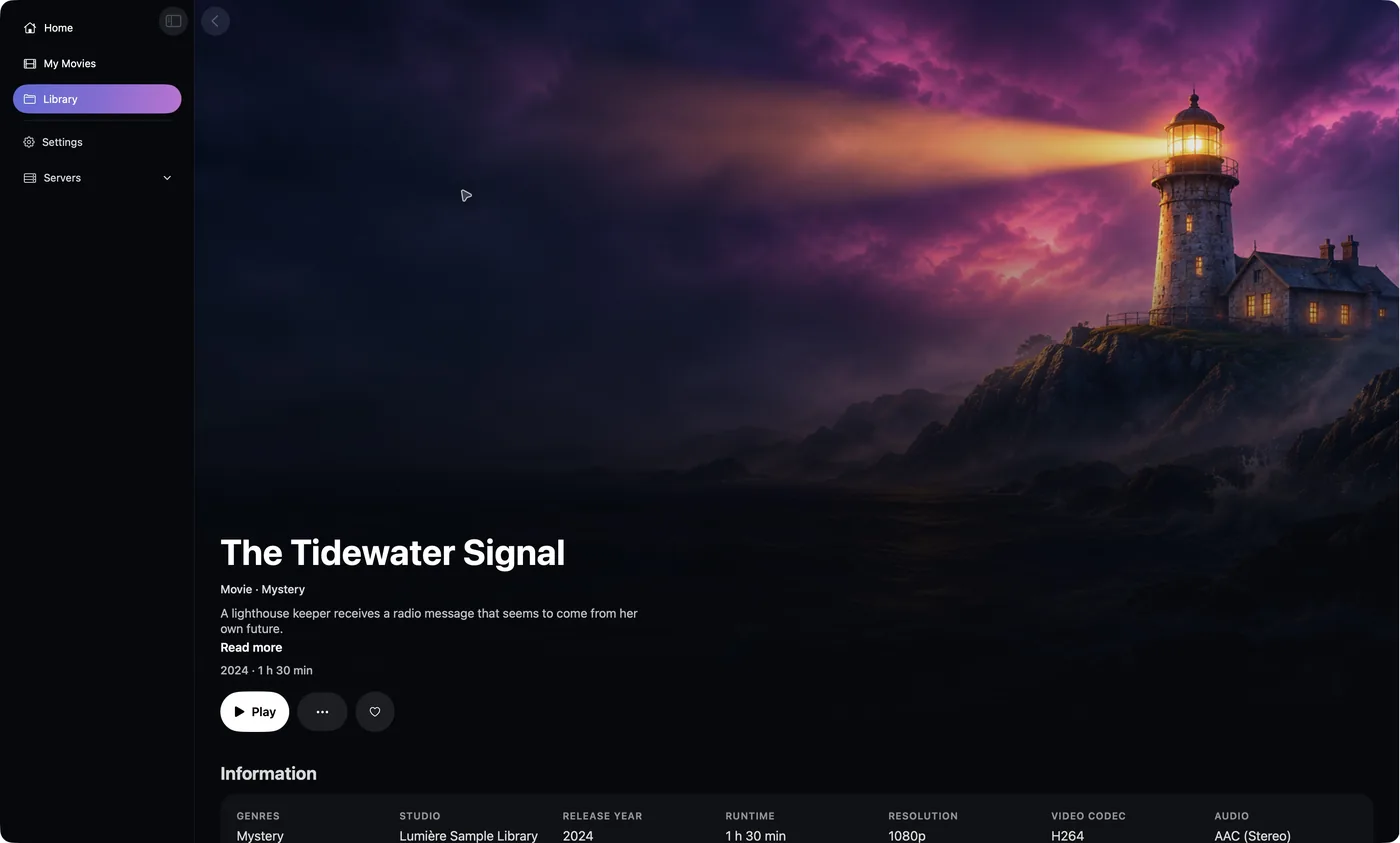
Requires macOS 15 or later

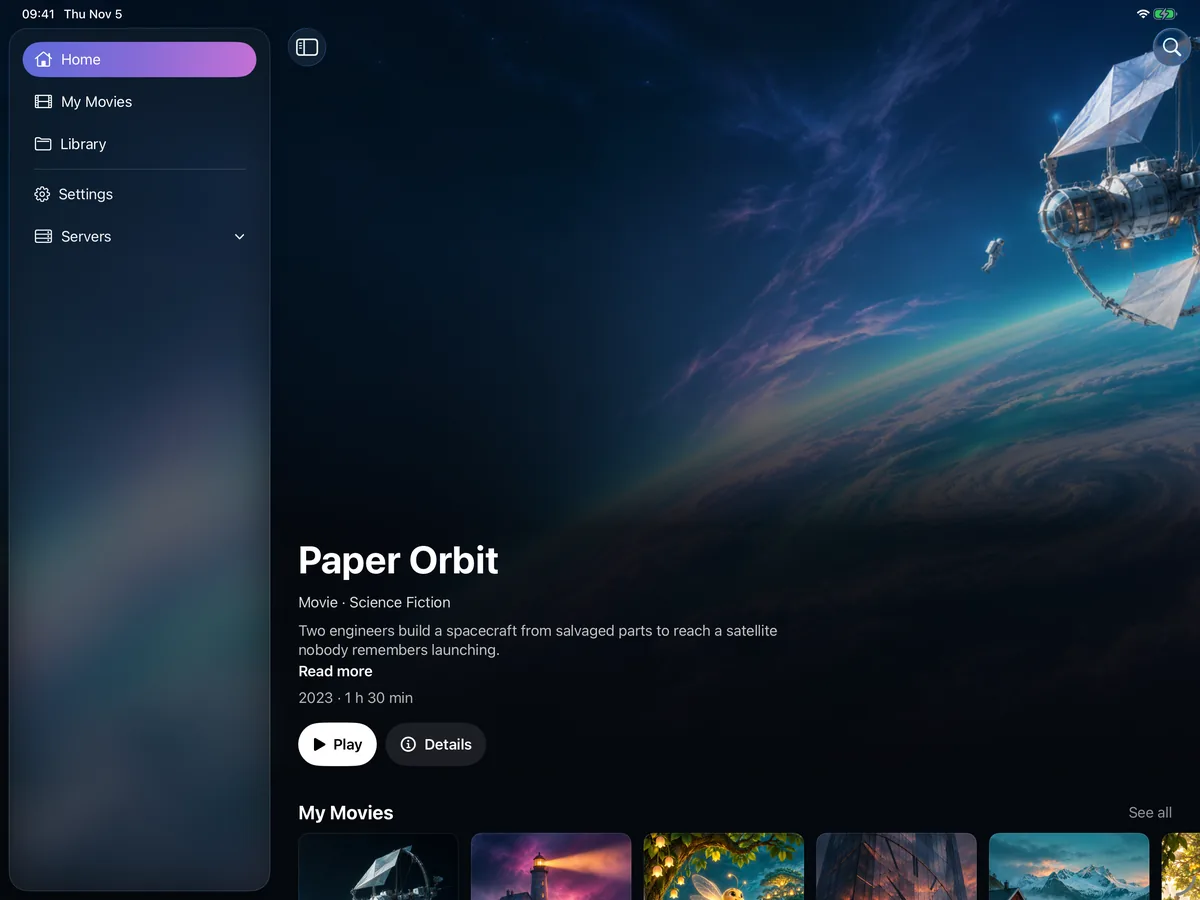
Requires iPadOS 18 or later

Requires iOS 18 or later
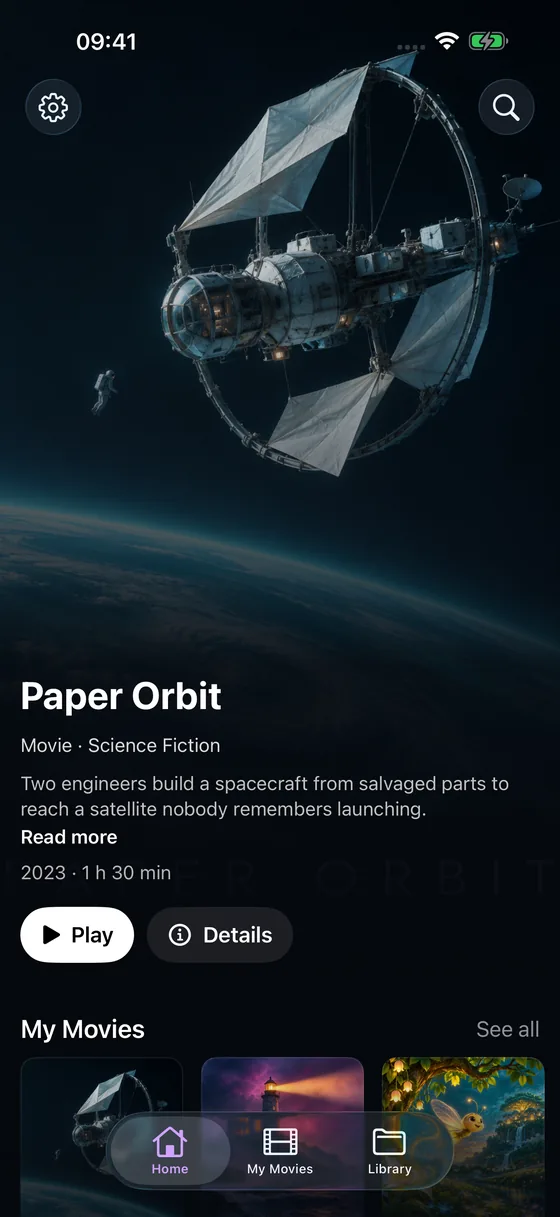
Server
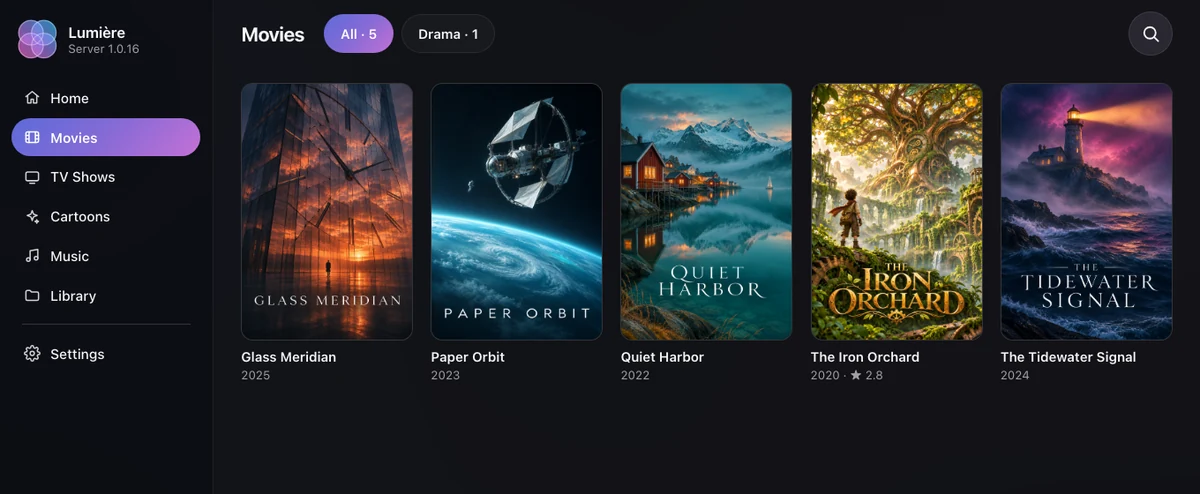
Give it the folders with your movies, shows, and music. It adds posters and details, and serves the files to the Lumière apps and to a web page. Lossless music files, such as FLAC and ALAC, play as they are. Your files stay on your machine.
For 64-bit Intel, AMD, and ARM machines
: to your media folder and to a folder for the server's settings.http://localhost:5059 in a browser.docker run -d --name lumiere-server --restart unless-stopped \
-p 5059:5058 \
-v /path/to/media:/media \
-v /path/to/config:/config \
-v /var/run/docker.sock:/var/run/docker.sock \
artsvit/lumiere-server:latestSave this text as docker-compose.yml. Then run docker compose up -d in the same folder.
services:
lumiere-server:
image: artsvit/lumiere-server:latest
container_name: lumiere-server
restart: unless-stopped
ports:
- "5059:5058"
volumes:
- /path/to/media:/media
- /path/to/config:/config
- /var/run/docker.sock:/var/run/docker.sock
environment:
- LUMIERE_CATEGORIES=Movies,TV Shows,Cartoon,MusicCopy this prompt into an AI agent that can run commands on your machine, such as Claude Code. The agent asks for your two folders, installs the server, and checks that it runs.
Install Lumière Server on this machine with Docker.
1. Check that Docker is installed and running. If it is not, tell me how to install it and stop.
2. Ask me for two folders: my media folder, and a folder for the server's settings. Create the settings folder if it does not exist.
3. Inside the media folder, create these four folders if they are missing: Movies, TV Shows, Cartoon, Music. Do not move, rename, or delete any of my files.
4. Run this command, with my two folders in place of /path/to/media and /path/to/config:
docker run -d --name lumiere-server --restart unless-stopped \
  -p 5059:5058 \
  -v /path/to/media:/media \
  -v /path/to/config:/config \
  -v /var/run/docker.sock:/var/run/docker.sock \
  artsvit/lumiere-server:latest
5. Run docker ps and check that lumiere-server runs. If port 5059 is in use, use another port on the left of 5059:5058 and tell me the new number. If it does not start, read docker logs lumiere-server and tell me the reason.
6. Open http://localhost:5059 and check that the server page loads.
7. Tell me the address to use in the Lumière apps: the IP address of this machine and the port.
Do not open the server to the internet and do not add a port forward on the router. The server has no password of its own.Open the server in a browser, go to Settings → About, and select Update now. The server gets the new version, restarts, and the page reloads. This needs the /var/run/docker.sock line from the install command. Without it, get the new image by hand, remove the old container, and run the install command again. Your settings and library data stay in the /config folder.
Servers installed before version 1.0.3 use port 5058. To keep that address, write -p 5058:5058 in the install command.
docker pull artsvit/lumiere-server:latest
docker rm -f lumiere-serverTo keep your media read-only, add :ro after /media. The server then plays your files but cannot delete a title.
If the server cannot read your files or write to the settings folder, add - PUID=1000 and - PGID=1000 under environment:. Use the numbers of the user who owns the folders. To see them, run id in a terminal.
Requires DSM 7.2 or later with Container Manager
/volume1/docker/lumiere./volume1/video to the shared folder with your media.http://<NAS address>:5059 in a browser.services:
lumiere-server:
image: artsvit/lumiere-server:latest
container_name: lumiere-server
restart: unless-stopped
ports:
- "5059:5058"
dns:
- 1.1.1.1
- 8.8.8.8
volumes:
- /volume1/video:/media
- /volume1/docker/lumiere/config:/config
- /var/run/docker.sock:/var/run/docker.sockEach subfolder of your media folder is a library. Name them Movies, TV Shows, Cartoon, or Music.
The two dns lines let the container look up internet names. Many NAS systems give containers no working DNS, and then posters and music details do not load.
If the server cannot read your files, add PUID and PGID under environment: with the numbers of your DSM user, for example - PUID=1026 and - PGID=100. To see the numbers, run id <user> in an SSH session.
To update, select your project in Container Manager, then Action, then Build. Your settings stay in the config folder.
For QNAP, Unraid, TrueNAS, ASUSTOR, and other systems that run Docker containers
artsvit/lumiere-server:latest.5059 of the NAS to port 5058 of the container./media and a settings folder to /config./var/run/docker.sock to the same path in the container. It lets Update now in the server’s Settings update the server for you.1.1.1.1 and 8.8.8.8. Posters and music details need it on some systems.http://<NAS address>:5059 in a browser.If your NAS accepts a Compose file, use the file from the Docker tab.
A desktop app for Linux. It runs in the system tray and serves your library to the Lumière apps.
Download for LinuxAppImage64-bit Intel or AMDUbuntu 22.04 or later, Debian, Fedora, Arch
Release notes and checksums ↗Set up in three steps
chmod +x LumiereServer-Linux.AppImage. Then open it.For Ubuntu, Debian, Fedora, Raspberry Pi OS (64-bit), and other distributions with Docker
http://<machine address>:5059 in a browser.docker run -d --name lumiere-server --restart unless-stopped \
-p 5059:5058 \
--dns 1.1.1.1 --dns 8.8.8.8 \
-e PUID=$(id -u) -e PGID=$(id -g) \
-v /srv/media:/media \
-v /srv/lumiere:/config \
-v /var/run/docker.sock:/var/run/docker.sock \
artsvit/lumiere-server:latestA Mac app. It runs in the menu bar and serves your library to the Lumière apps.
Download for MacDisk image (.dmg)macOS 11 or laterApple silicon
Release notes and checksums ↗Set up in three steps
Requires Docker Desktop for Mac, on Apple silicon or Intel
~/Movies if your media is in a different folder. Then run the command.http://localhost:5059 in a browser.docker run -d --name lumiere-server --restart unless-stopped \
-p 5059:5058 \
-v ~/Movies:/media \
-v ~/Library/Application\ Support/Lumiere\ Server:/config \
-v /var/run/docker.sock:/var/run/docker.sock \
artsvit/lumiere-server:latestKeep the Mac awake while you watch. A Mac that sleeps stops the server.
A Windows app. It runs in the notification area and serves your library to the Lumière apps.
Download for WindowsInstaller (.exe)64-bit Windows 10 or 11
Release notes and checksums ↗Set up in three steps
LumiereServer-Setup.exe and follow the installer. Then open Lumière Server from the Start menu.Requires Docker Desktop for Windows 10 or 11
D:\Media to your media folder. Then run the command.http://localhost:5059 in a browser.docker run -d --name lumiere-server --restart unless-stopped `
-p 5059:5058 `
-v "D:\Media:/media" `
-v "$env:LOCALAPPDATA\Lumiere Server:/config" `
-v /var/run/docker.sock:/var/run/docker.sock `
artsvit/lumiere-server:latestMake four folders in your media folder: Movies, TV Shows, Cartoon, and Music. The server reads these four names.
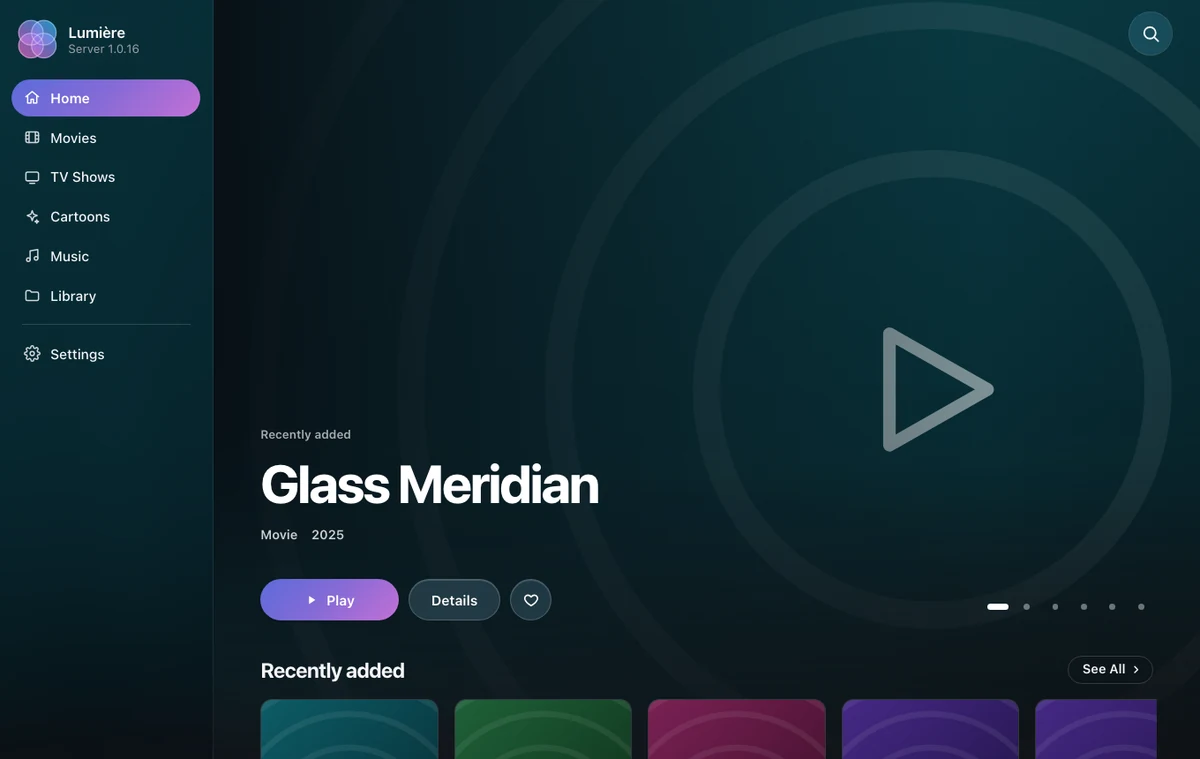
In Lumière, open Settings and select Servers. Add Lumière Server with port 5059, or use Search. Older apps name it Other Server.
The server plays the original file.
Lossless files play as they are.
A song with no tags gets its name from its sound with a free AcoustID application key. Get it at acoustid.org/new-application.
Open the server page and select Settings. Paste a free TMDB API key. The server then matches each title.
docker ps and look for lumiere-server.docker ps shows no container, run docker logs lumiere-server to see the reason.5059 is in use, change the number on the left of 5059:5058, for example to 5060:5058. Then use that number in the address.localhost. Allow port 5059 in the firewall of the machine.docker run, add --dns 1.1.1.1 --dns 8.8.8.8. For Docker Compose, add dns: [1.1.1.1, 8.8.8.8] to the lumiere-server service.Lumière Server plays only the files that you put in its folders. It does not supply, find, or download movies, TV shows, or music. It has no password of its own, so use it on a private network you trust and do not open it to the internet. Posters and details come from TMDB with your own free key, which you get for personal use and are responsible for, and trailers can load from YouTube; these services have their own terms. This product uses the TMDB API but is not endorsed or certified by TMDB. Lumière Server is free and comes without warranty. See the Terms and the Privacy Policy.